Usage
This guide covers how to use AI Chat effectively in your daily workflow.
Opening AI Chat
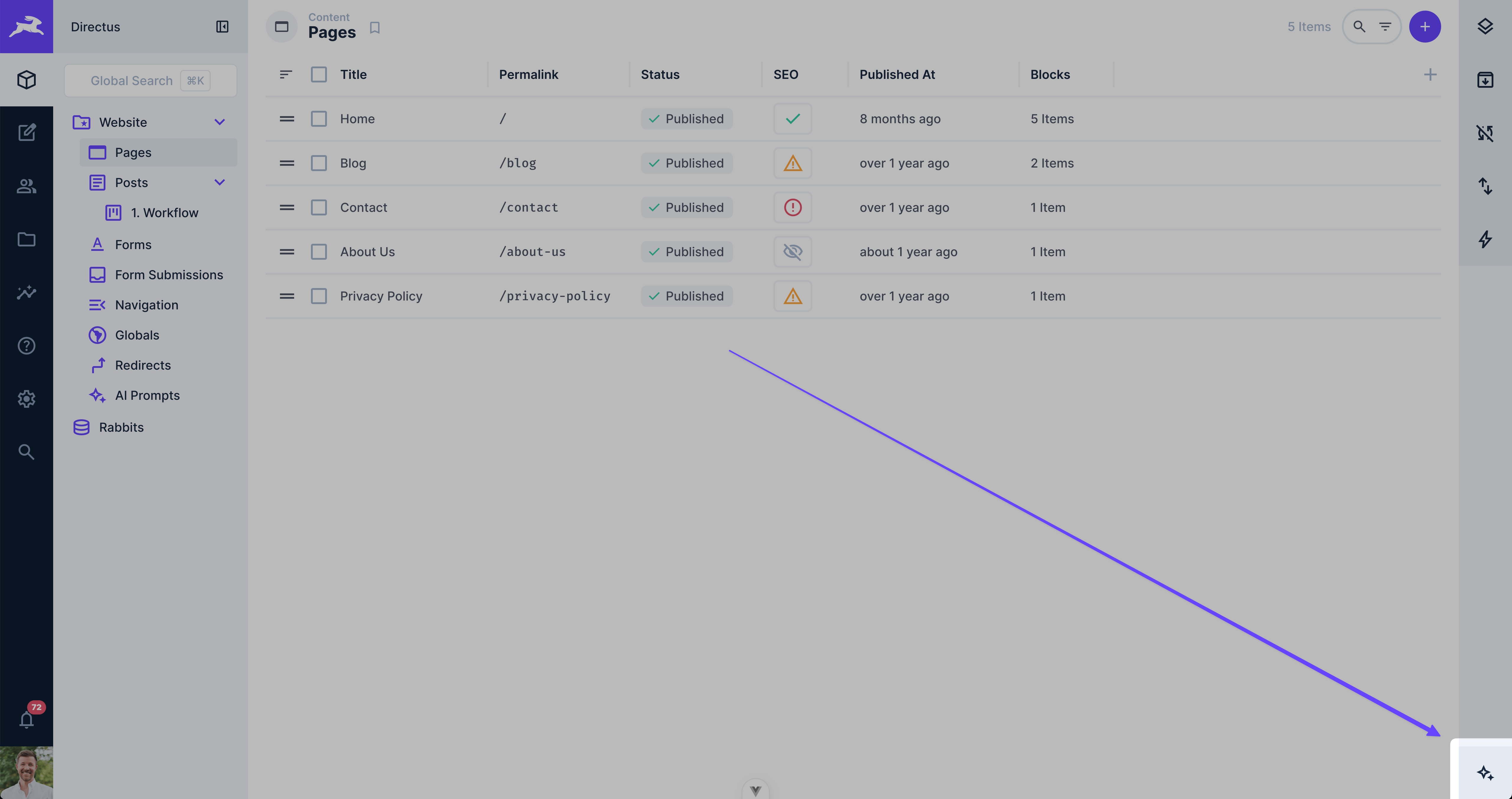
Click the AI Chat button in the Directus right sidebar to open the chat panel. The panel appears on the right side of your screen and persists as you navigate.
Selecting a Model
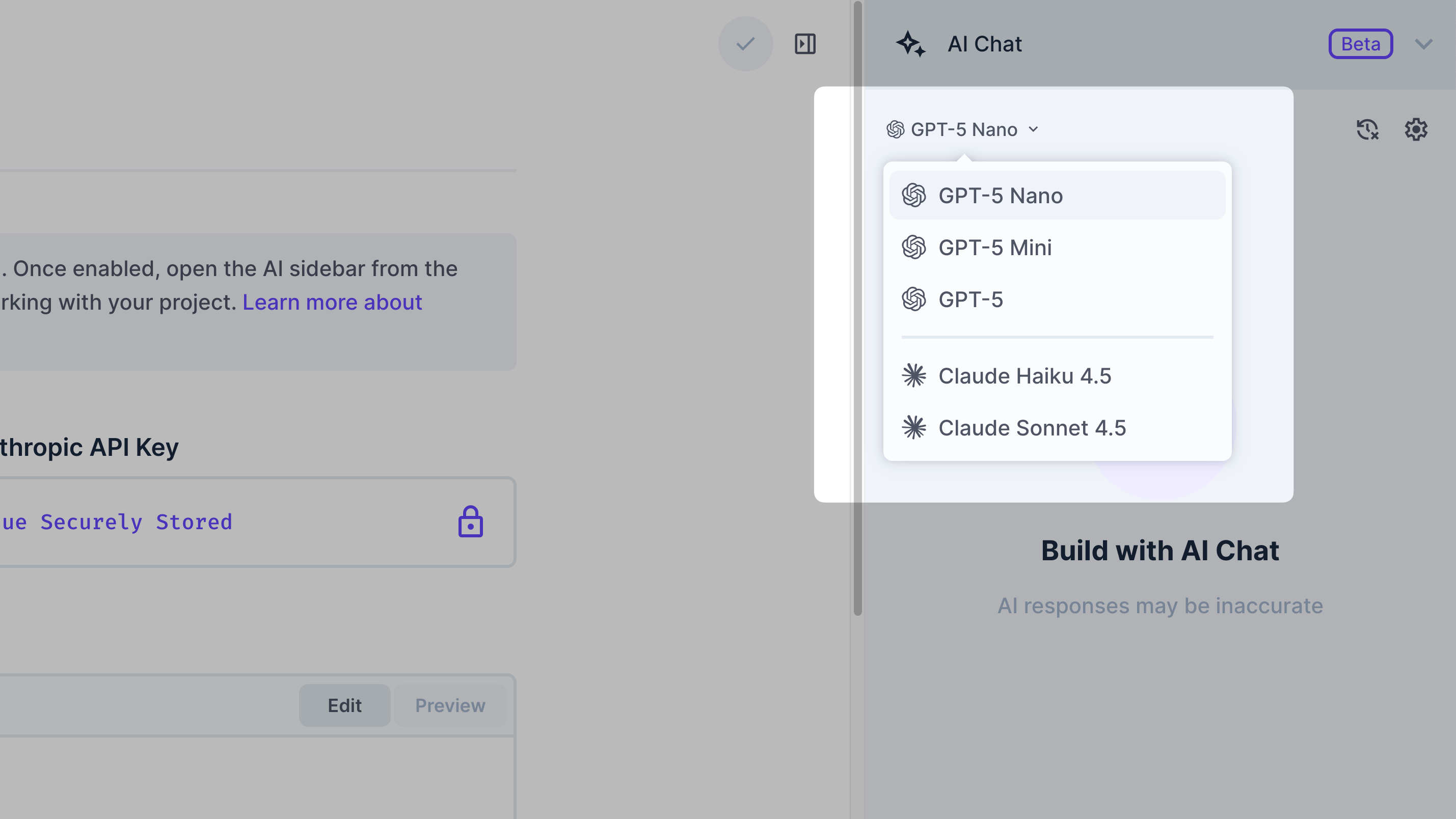
Click the model dropdown in the chat header to choose which AI model to use:
| Model | Best For |
|---|---|
| GPT-5 Nano / Claude Haiku 4.5 | Quick tasks, simple queries |
| GPT-5 Mini | Balanced speed and capability |
| GPT-5 / Claude Sonnet 4.5 | Complex operations, detailed analysis |
Only models for configured providers appear in the dropdown.
Having a Conversation
Type your message and press Enter to send (Shift+Enter for new line). Responses stream in real-time with full Markdown formatting.
Understanding Responses
AI Chat displays several types of content in responses:
Text Messages
Standard conversational responses with Markdown formatting.
Reasoning Blocks
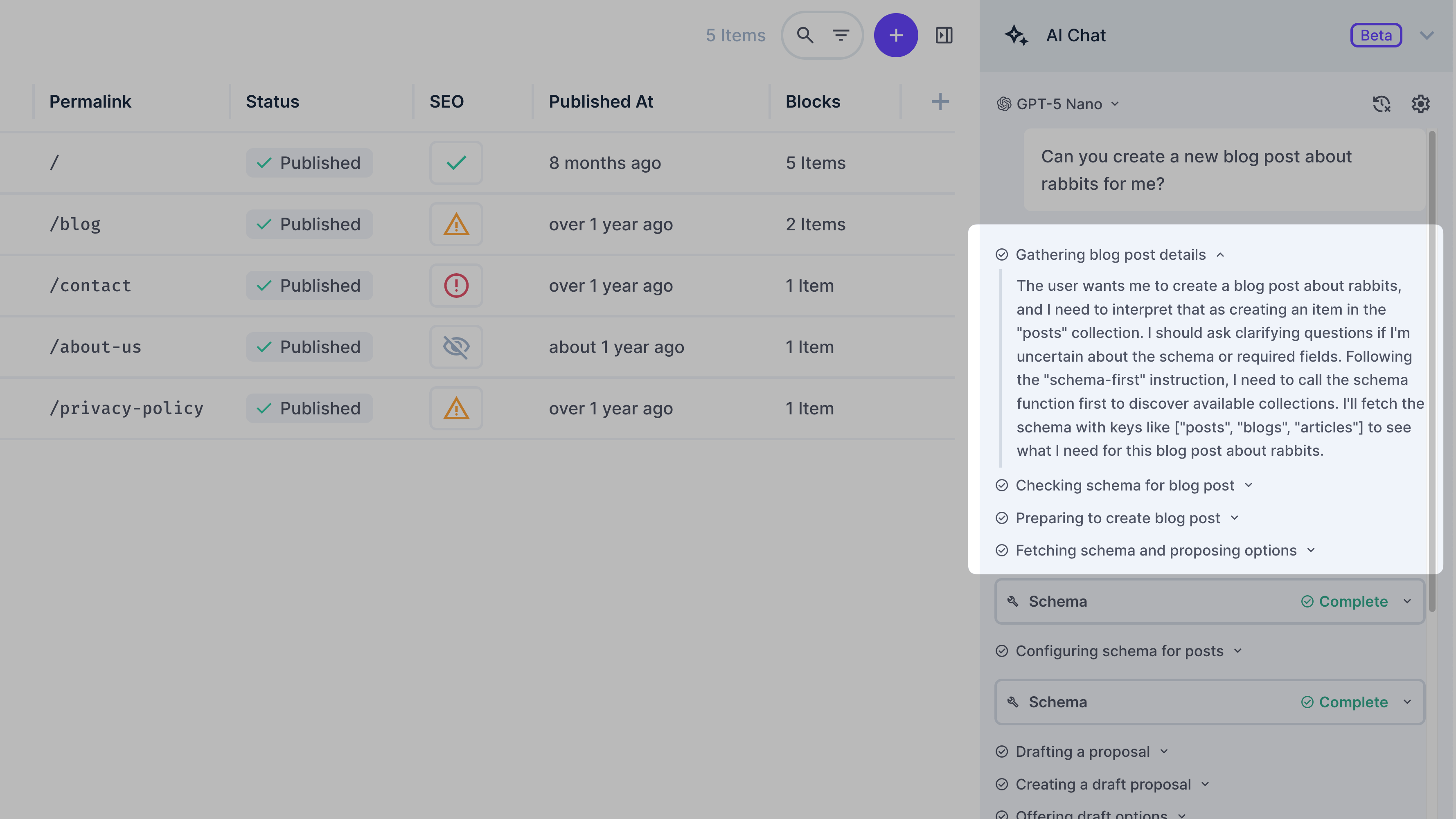
Collapsible sections showing the AI's internal reasoning (extended thinking). Click to expand.
Tool Calls
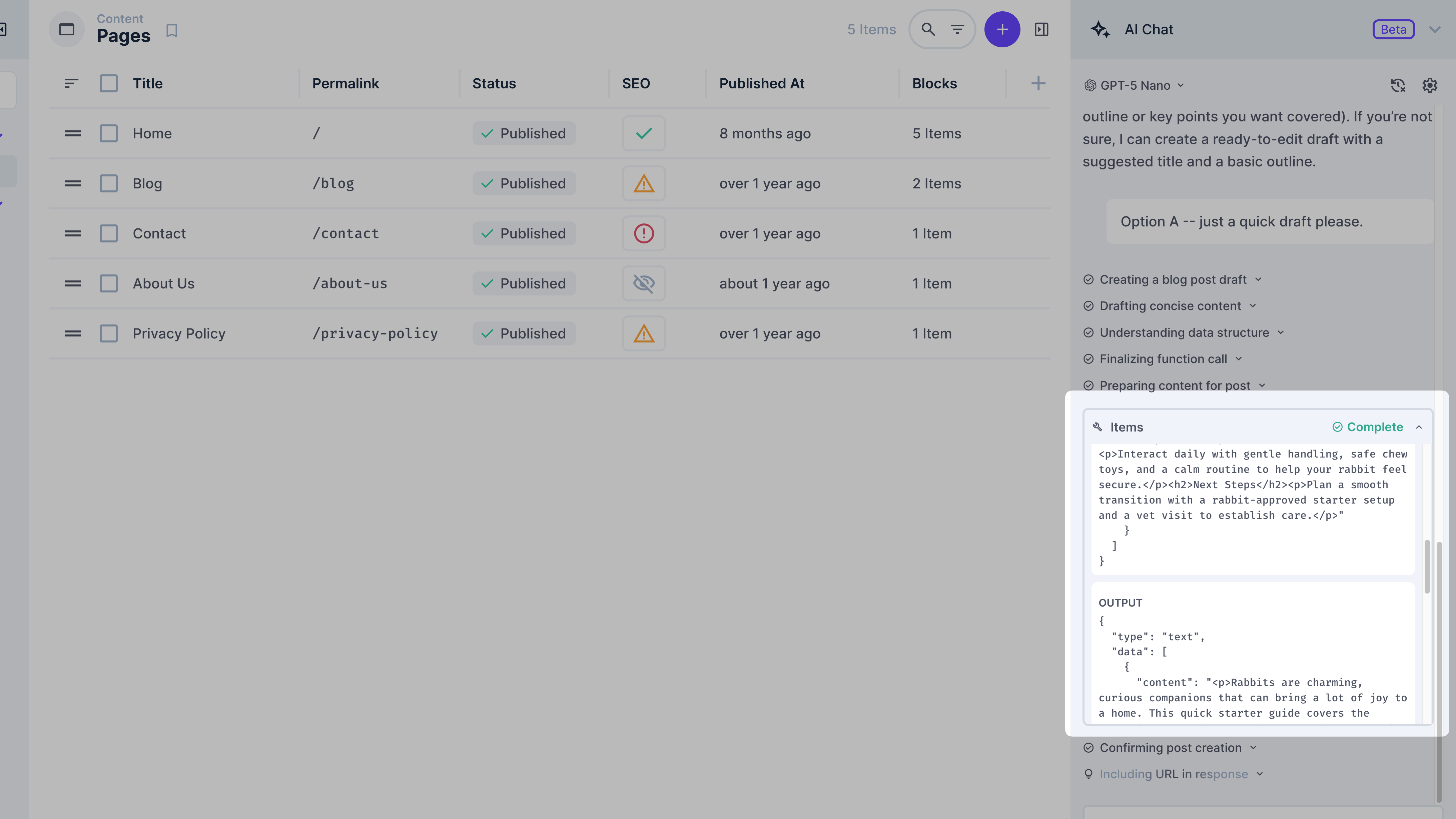
When the AI performs an action, it displays a tool call card showing:
- The tool being used
- Input parameters
- Results after execution
Tool Approval
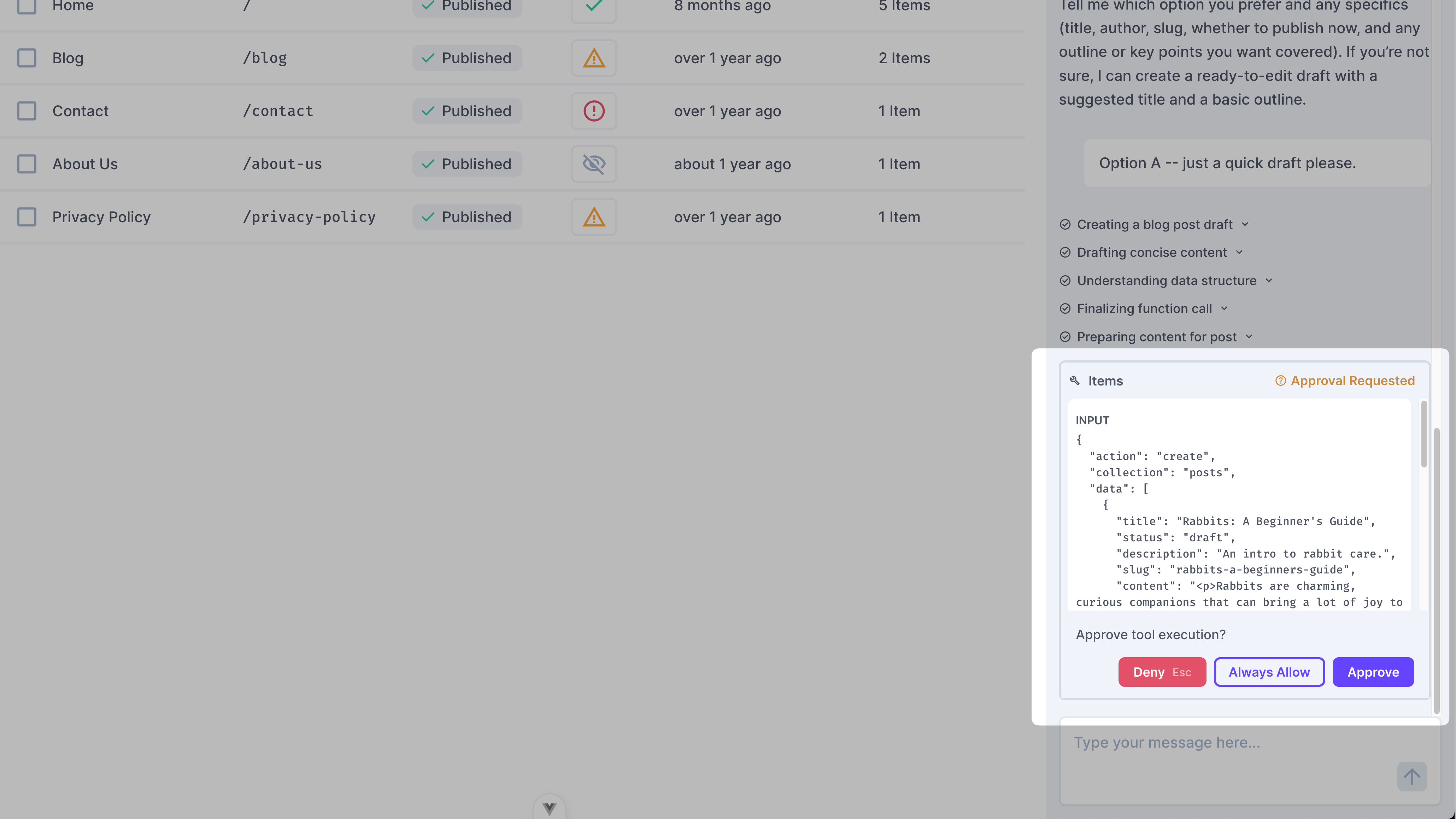
All tools require approval by default. When a tool needs approval, review the action then choose Approve, Deny (Esc), or Always Allow.
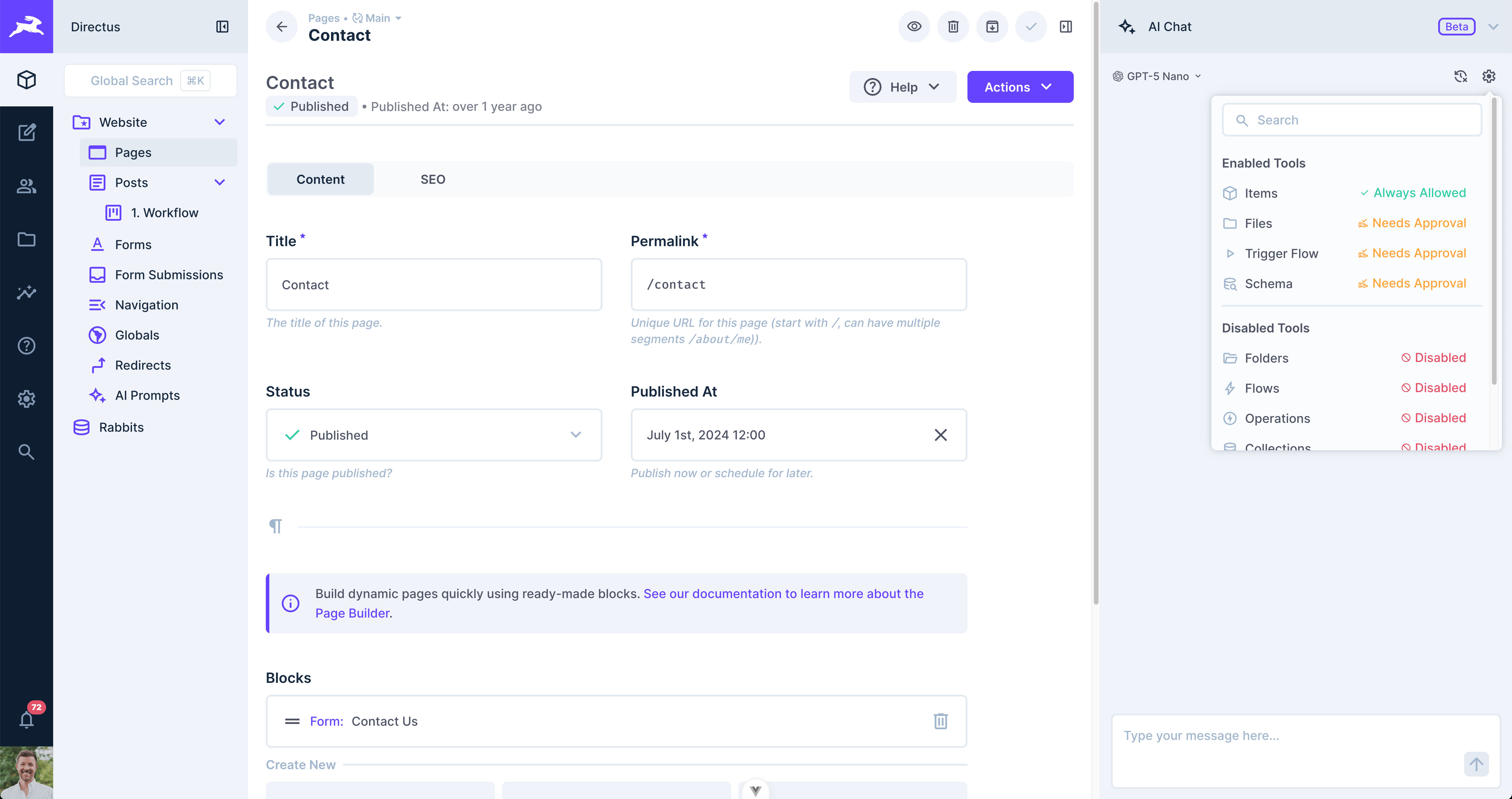
Configure per-tool approval settings via the gear icon in the chat header. See Tool Behavior for details.
Managing Conversations
Clearing the Conversation
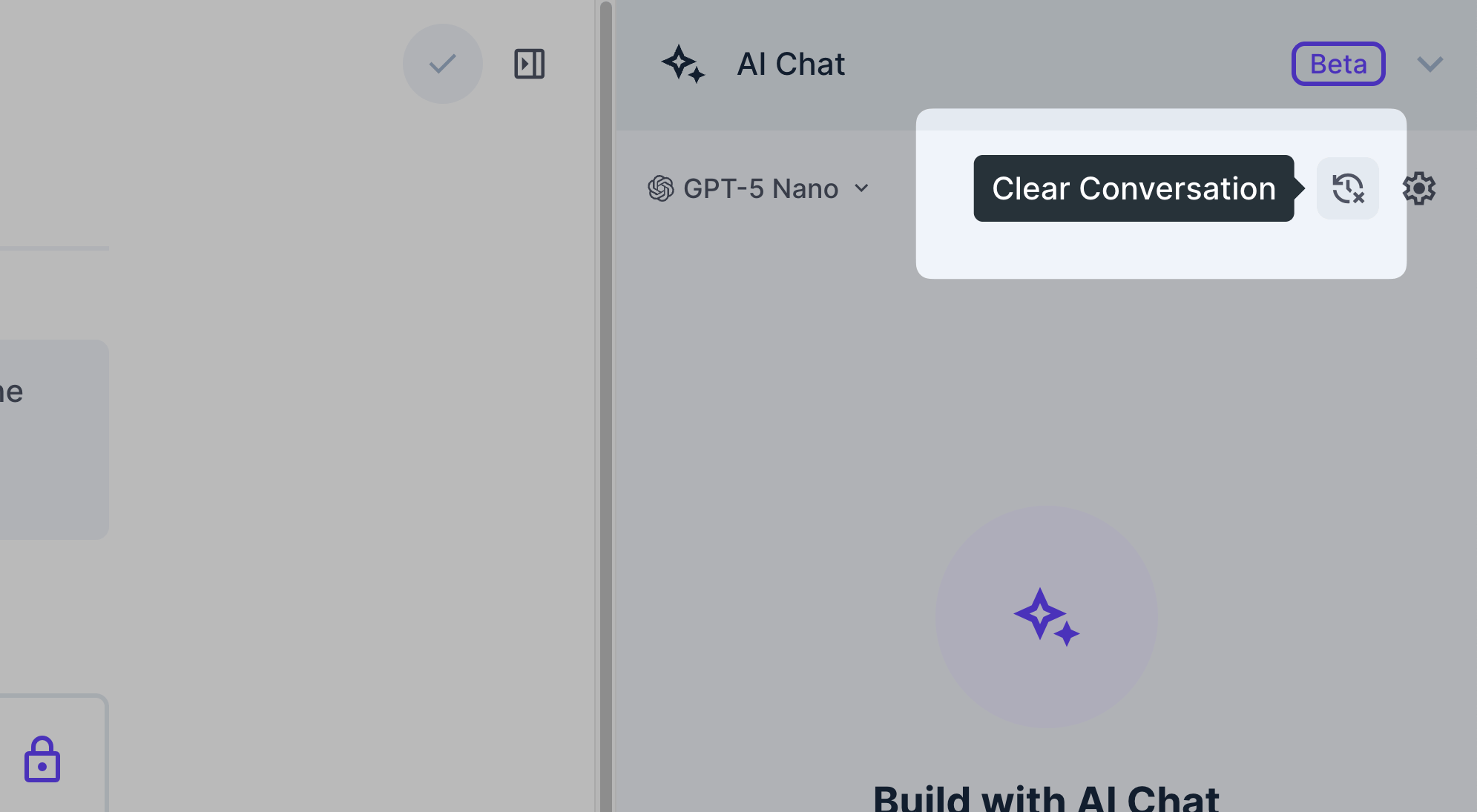
Click the clear button (trash icon) in the chat header to start fresh. This resets:
- Message history
- Token usage tracking
Stopping a Response
While the AI is generating a response, the send button becomes a stop button. Click it to interrupt generation.
Retrying After an Error
If an error occurs, a retry button appears. Click to regenerate the last response.
Context Limits
Data Storage
What's Stored in Your Browser
- Conversation history
- Selected model preference
- Tool approval settings
- Chat open/closed state
What's NOT Stored
- Conversations are not saved to the Directus server
- Conversations are not shared between users or devices
- Closing the browser or clearing local storage deletes history
Permissions
The AI operates with your existing Directus permissions. If you don't have access to a collection or operation, neither does the AI. See Security for more details.
Next Steps
Get once-a-month release notes & real‑world code tips...no fluff. 🐰