AI Chat
Tools
Reference of all tools available to AI Chat for interacting with your Directus instance.
AI Chat uses tools to perform actions on your behalf. Each tool handles a specific type of operation within Directus.
AI Chat is in beta. Tools and capabilities may change.
Tools use your existing user permissions. Users without admin access won't see Admin Only tools. If you can't access a collection or perform an action in Directus, the AI can't either.
System Tools
These tools interact with your Directus instance via API to manage content, files, and schema.
| Tool | Description |
|---|---|
| Schema | Explore collections, fields, and relationships (read-only) |
| Items | Create, read, update, and delete items in your collections |
| Files | Manage file metadata, import from URLs, organize uploads |
| Folders | Create and organize folder structures for files |
| Trigger Flow | Execute manual flows on demand |
Admin Only
Be careful when using these tools as deleting or modifying schema can result in data loss.
| Tool | Description |
|---|---|
| Collections | Create, modify, and delete collections (database tables) |
| Fields | Add, configure, and remove fields within collections |
| Relations | Set up relationships between collections |
| Flows | Create and manage automation workflows |
| Operations | Configure individual steps within flows |
Page Context Tools
Page Context tools let the AI work directly with what's on your screen. They are only available when editing data and may not be available on all pages. Approval modes cannot be changed for Page Context tools.
| Tool | Description |
|---|---|
| Read Form Values | Read current field values from the form on screen |
| Set Form Values | Update field values on the current form |
Tool Behavior
Approval Modes
Each tool can be configured with one of three approval modes:
| Mode | Behavior |
|---|---|
| Always Allowed | Execute immediately without asking |
| Needs Approval | Show approval dialog before executing (default) |
| Disabled | Tool is hidden from AI and not loaded into context |
Tool approval settings are stored locally in your browser and are unique to you. They won't sync to your Directus instance or affect other users.
Disable unused tools to reduce costs. Disabled tools are not sent to the AI provider, reducing token usage. If you only manage content, disable schema and flow tools.
Default Settings
All tools default to Ask mode. Nothing executes without your explicit approval until you change the settings.
Configuring Tools
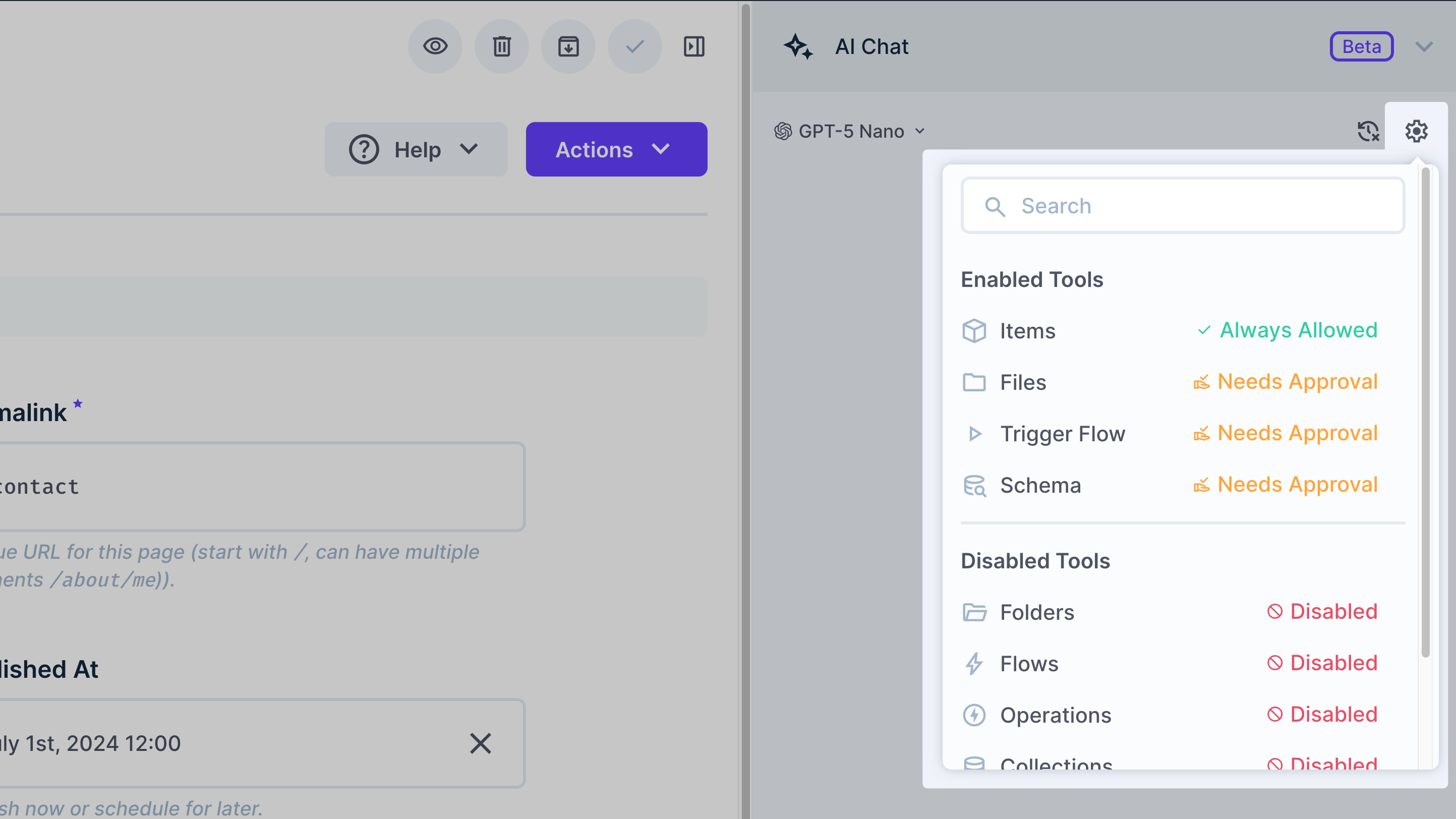
- Open the settings menu (gear icon) in the chat header
- Search for specific tools
- Click a tool and select an approval mode from the dropdown
- Settings persist in your browser
Next Steps
Get once-a-month release notes & real‑world code tips...no fluff. 🐰