

Multilevel Autocomplete Interface
Get data from nested API queries.
Installation
Refer to the Official Guide for details on installing the extension from the Marketplace or manually.
Usage
Add the Multilevel Autocomplete via the interface selector. Select either a Web Request or a List and fill in the corresponding fields that define how to load the initial step. Add items to the Nested Steps list to define additional steps. Lastly, define your Payload template to produce the final output.
Example
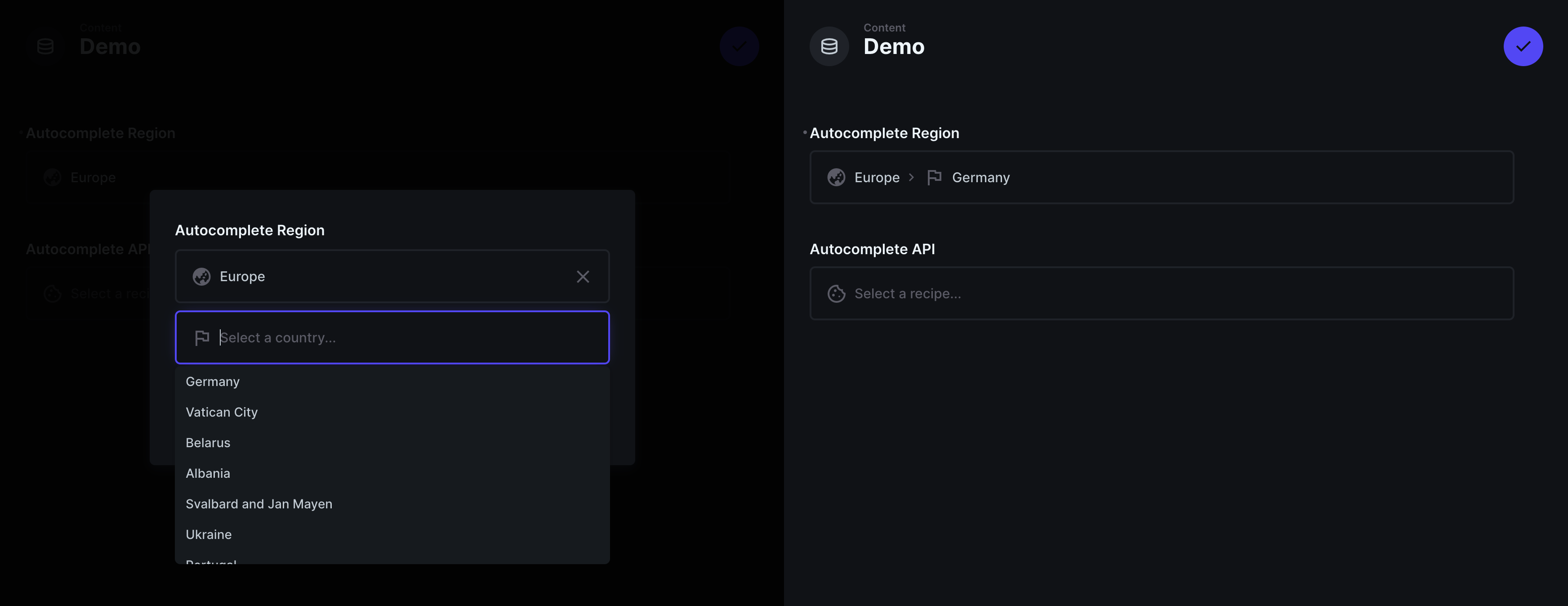
In this example, a fixed list of regions will be shown, and then a filtered list of countries will be shown as an autocomplete interface powered by an external API.
1. Initial List
When using a list as the initial source, you must provide a fixed set of values, each with a text and a value. The value can be a string of JSON object.
Create two items in the list (you can paste in the following as a raw value):
[
    {
        "text": "Europe",
        "value": "europe"
    },
    {
        "text": "Americas",
        "value": "americas"
    }
]
The value chosen will be stored as the first item in the values array that can be referenced in nested steps.
2. Filtered Autocomplete
Create a nested step which will use the selected region. Make a GET request to https://restcountries.com/v3.1/region/{{values[0]}}.
- As this API returns the array of options directly, there is no need to provide a Requests Path.
- Set the Text Path to
name.commonto use this value as the visible text for options. - Set the Value Path to
cca2as this the raw value to be used.
3. Structured Payload
Finally, set a payload that will be included in the raw data:
{
    "region": "{{ values[0] }}",
    "country": {
        "name": "{{ steps[1].text }}",
        "code": "{{ steps[1].value }}"
    }
}
4. Outcome
In use, the interface will first show a dropdown with two options - Europe and Americas. Using the external API, the nested step will show an autocomplete interface of countries filtered by the value chosen.
The raw data includes text and value for all steps, and the defined payload structure:
{
    "steps": [{
        "text": "Europe",
        "value": "europe"
    }, {
        "text": "United Kingdom",
        "value": "GB"
    }],
    "payload": {
        "region": "europe",
        "country": {
            "name": "United Kingdom",
            "code": "GB"
        }
    }
}
Calling the Items API
You can use this extension with the REST API generated for your Directus Project.
This allows for filtered inputs based on your own project's data using the filter and search parameters.
When configuring the request, you must include your full Directus project URL.