Files
Download Files
Learn to download content from the File Library
There are three primary ways to download content within Directus:
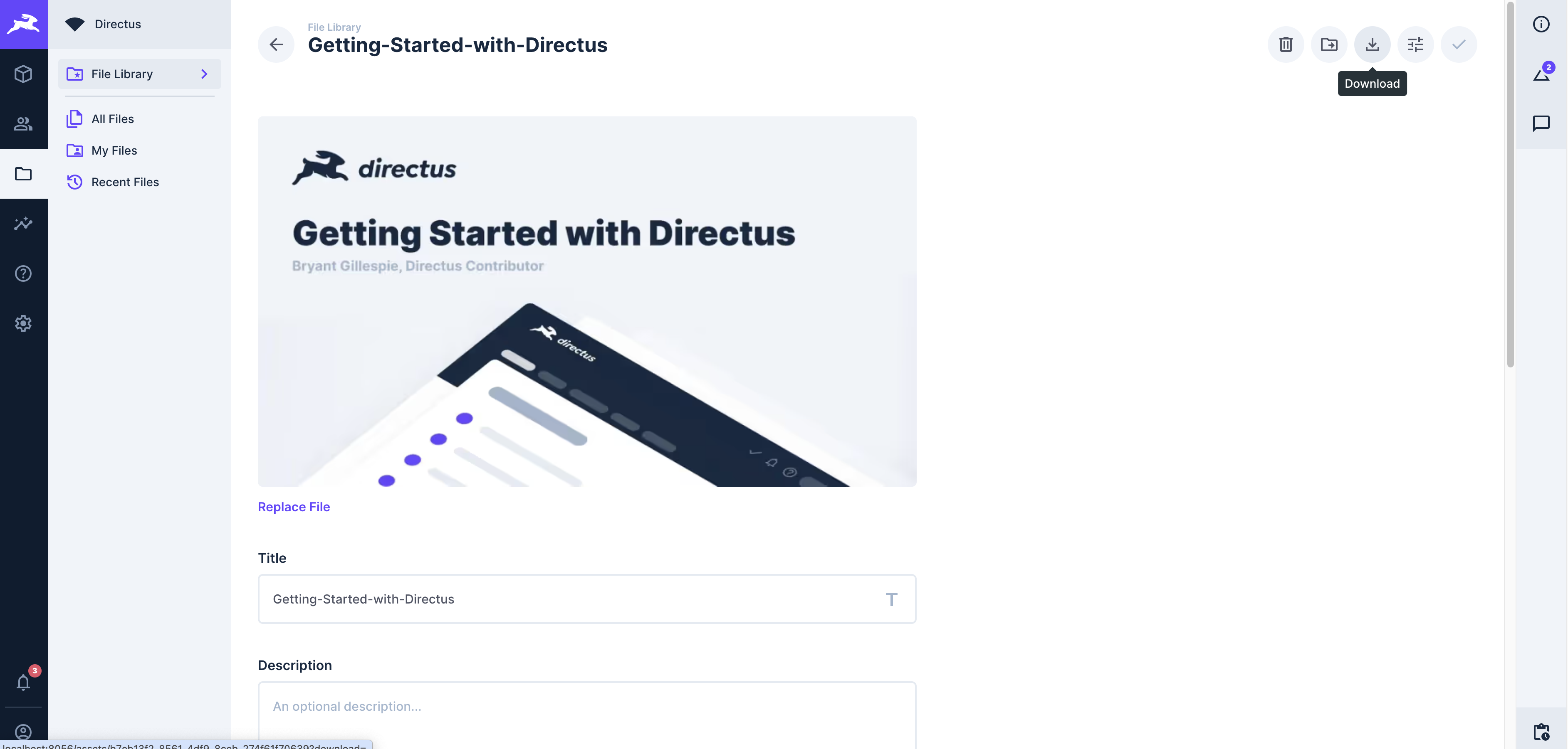
- Download a single file from the File Item Page
- Download selected files from the File Library
- Download an entire folder tree from the File Library sidebar
Download a single file from the File Item Page
Steps
- Navigate to the File Library.
- Click a file to open its File Item Page.
- Locate the Download button () in the top-right of the page.
- Click Download to begin downloading the file.
Download selected files from the File Library
Steps
- Open the File Library.
- Hover over each file and check the selection box.
- Once one or more items are selected, the Download button will appear in the header.
- Click the Download button () in the toolbar.
- A ZIP file containing all selected files will save to your downloads.

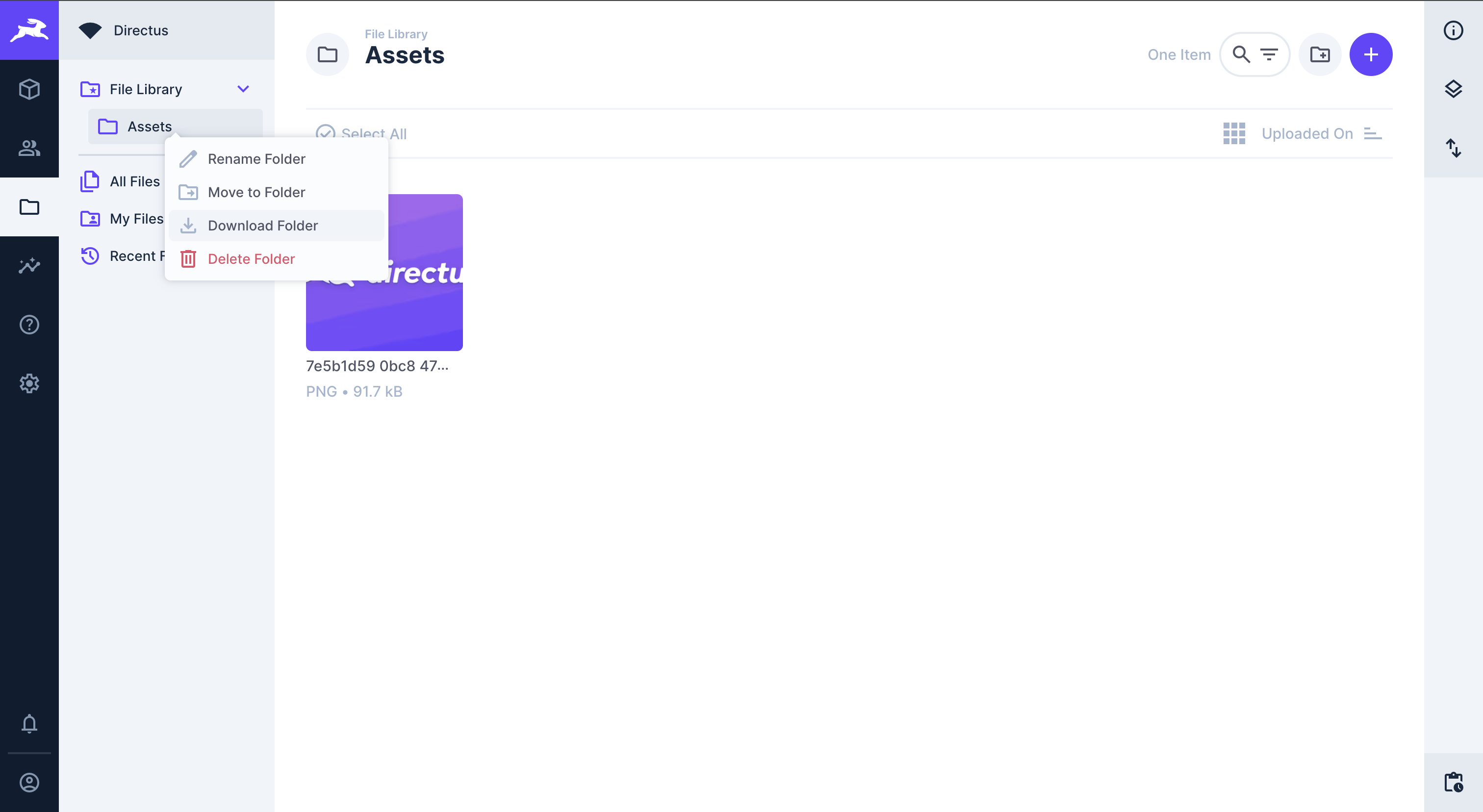
Download an entire folder tree from the File Library sidebar
Steps
- Hover over the folder you want to download.
- Open the folder’s context menu (right-click).
- Select Download Folder.
- The folder is packaged into a ZIP (including all subfolders) and downloaded automatically.
Permission Requirements
Before attempting to download multiple files or folder trees, make sure your user role includes the required permissions.
Minimum Required Permissions
Downloading Multiple Files as a ZIP
Requires read permissions on the directus_files collection with access to the id field.
Downloading a Folder as a ZIP
Requires read permissions on the directus_folders collection with access to the id field and the directus_files collection with access to the file id and folder fields.
Get once-a-month release notes & real‑world code tips...no fluff. 🐰