Deploy Directus to Azure Web Apps
This guide outlines the steps to deploy Directus on Azure using Docker, with a focus on utilizing PostgreSQL as a database.
Before You Start
Before deploying Directus on Azure, make sure you have the following prerequisites:
- An existing or new Azure account.
- A basic understanding of Docker.
Create and Set Up a Resource Group
To begin the deployment process, you need to set up a resource group in Azure. A resource group acts as a logical container to group and manage related Azure resources. It allows you to organize your resources, control access permissions, and manage them collectively.
Sign into your Azure account via the Azure Portal. Head to Resource groups and click the Create button.
Provide a unique name for your resource group and choose the Azure subscription to link your new group to. Select the appropriate region for your resource group, considering factors like data residency and proximity to users, and adjust other settings if required.
Setting Up Azure Database for PostgresSQL
Directus connects to an existing database, so it's time to create one. Enter your new resource group and, in the Overview pane, click the Create button to initiate the resource creation process.
In the Azure Marketplace pane, search for and select a Azure Database for PostgreSQL resource. Secure your new database with PostgreSQL authentication, a strong password, and consider firewall rules for additional protection.
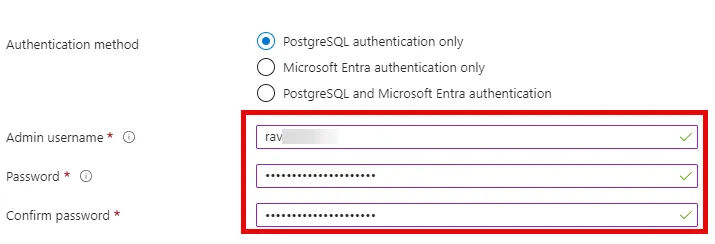
Save the server's name, username, and password for later use when configuring Directus.
Finally, click on Review + Create and then Create to create your new PostgreSQL Database deployment.
Deploying Directus on a Web App Service
Within the Azure Marketplace, select the Web App resource. When creating a Web App, you will step through multiple configuration pages.
Basics
- Subscription/Resource Group: select the same resource group we created and used earlier.
- Publish: Container
- Operation System: Linux
Container
- Image source: Other container registries
- Access Type: Public
- Registry server URL: https://index.docker.io
- Image and tag: directus/directus:11.17.0
- Port: 8055
11.17.0 as the latest at the time of writing. Please refer to the releases and replace this with the latest version.Finally, click on Review + Create and then Create to create your new Web App.
Environment variables
Once the web app has been created, we will return to it to enter the required environment variables. Go to Settings -> Environment variables and add the following variables:
| Name | Value |
|---|---|
SECRET | <REPLACE_WITH_RANDOM_VALUE> |
PUBLIC_URL | https://<YOUR_AZURE_WEB_APP_URL> |
ADMIN_EMAIL | admin@example.com |
ADMIN_PASSWORD | d1r3ctu5 |
DB_CLIENT | pg |
DB_HOST | <YOUR_PDS_DB_URL> |
DB_PORT | 5432 |
DB_DATABASE | postgres |
DB_USER | <YOUR_DB_USER> |
DB_PASSWORD | <YOUR_DB_PASSWORD> |
Let’s go through the important parameters in this configuration:
- Set
PUBLIC_URLto the exact HTTPS URL of your Azure Web App. - Set the
DB_HOSTvalue to your Azure Database for PostgreSQL's server name. You can find it in the resource's overview section. - Also set
DB_USERandDB_PASSWORDto the credentials you set up during the creation of your Azure Database for PostgreSQL.
WEBSITES_ENABLE_APP_SERVICE_STORAGE setting must remain at its default value of "off". Changing it to "on" will prevent Directus from starting.Mounting volumes
To enable persistence for Directus, you must use external persistent storage for your file uploads, as Docker containers are ephemeral by default.
First we need to create a storage account. In the Azure Marketplace pane, search for and select Storage accounts. Click the Create button and create a new storage account with preferred storage type "Azure Files". Click on Review + Create and then Create to create your new storage account. Return to the storage account we created and go to Data storage -> File shares. Add the following file shares:
| Name | Access tier |
|---|---|
| database | Hot |
| extensions | Hot |
| uploads | Hot |
Then return to the Web App and head to Settings -> Configuration -> Path mappings. Add the following mappings:
| Name | Storage type | Protocol | Storage container | Mount path |
|---|---|---|---|---|
| Database | Azure Files | SMB | database | /directus/database |
| Extensions | Azure Files | SMB | extensions | /directus/extensions |
| Uploads | Azure Files | SMB | uploads | /directus/uploads |
WEBSITES_ENABLE_APP_SERVICE_STORAGE set to its default value of "off".
If you enable it, Azure automatically mounts an Azure Files share over the container’s /home directory, which can hide critical files and directories that Directus expects and may cause startup to fail.Following the creation of the Web App Resource, Directus is now successfully deployed and can be visited via the default domain in the Azure Web App page.
Validation Checklist
Verify the setup:
- Open the Azure Web App URL. Because
ADMIN_EMAILandADMIN_PASSWORDare set, Directus should show the login screen instead of onboarding. - Sign in with the admin credentials you configured and create and read an item in a test collection to confirm PostgreSQL connectivity.
- Upload a test file and confirm persistence in the configured mounted share.
- Restart the Web App and confirm Directus comes back online with data intact.
- Review App Service logs for startup errors after any environment variable changes.
Troubleshooting Tips
Here are few troubleshooting tips:
Connection Issues with Azure Database for PostgreSQL
If you encounter connectivity problems between Directus and your Azure Database for PostgreSQL, consider the following steps:
- Firewall Rules: Ensure that the firewall rules for your Azure Database allow connections from the Azure Web App. You can configure this in the Azure Portal under the Connection Security section for your PostgreSQL server.
- Connection String: Double-check the values of the environment variables for
DB_HOST,DB_USER,DB_PASSWORD, and other related parameters. Any discrepancies here can result in connection failures.
Azure Web App Deployment Failures
In case your Azure Web App deployment fails, consider the following:
- Docker Image Compatibility: Ensure that the Directus Docker image version specified is compatible with the Azure Web App environment. Check for updates or use a different version if needed.
- Resource Group Permissions: Confirm that the Azure account used for deployment has the necessary permissions to create and manage resources within the specified resource group.
Directus Interface Login Issues
If you experience problems logging into the Directus interface:
- Admin Credentials: Ensure that the values of the environment variables
ADMIN_EMAILandADMIN_PASSWORDmatch the credentials you are using to log in. - Environment Variable Changes: If you make changes to environment variables after the initial deployment, restart the Directus container to apply the new configurations.
Summary
This tutorial has guided you through setting up a resource group, configuring Azure Database for PostgreSQL, and deploying Directus using Docker on an Azure Web App.